

 By
By Introduction
Searching for GoBlueCC can create more confusion than clarity. One result may look like a business platform, another may show an affiliate login, while other searches seem connected to the University of Michigan because “Go Blue” is closely associated with the university.
The safest approach is to identify your task, begin from an official university page, and check the sign-in address before sharing account details. This guide explains the term, current U-M access routes, the 2026 login change, and common security risks.
What Is GoBlueCC and Why Are Search Results Confusing?
GoBlueCC is an ambiguous online search term, not a verified name for the University of Michigan’s main student portal. Search results may refer to an older commercial login, a third-party company listing, or an article that describes unrelated software. U-M’s official gateway for many student and campus tools is called Wolverine Access.
The confusion comes from “Go Blue,” a familiar University of Michigan phrase. Search engines may connect similar words, old domains, directory records, and newer articles even when the pages serve different purposes. Michigan-related language, colors, or sports terms do not prove university ownership.
What the main result types suggest
| Result type | What it appears to provide | What readers should understand |
| Third-party article | Claims about file storage, collaboration, analytics, and workflow tools | These claims should not be treated as verified without official product documentation |
| Older login page | Username and password fields, affiliate access, and mobile links | It does not identify itself as a U-M student-service page |
| Business directory profile | Industry labels, company size estimates, and contact information | Directory data may be limited, automated, or outdated |
| Official U-M pages | Wolverine Access, Enrollment Connect, account help, and security guidance | These are the appropriate sources for university access instructions |
A useful rule is simple: judge a portal by its official ownership and purpose, not by a familiar phrase in its name.
Which University of Michigan Portal Should You Use?
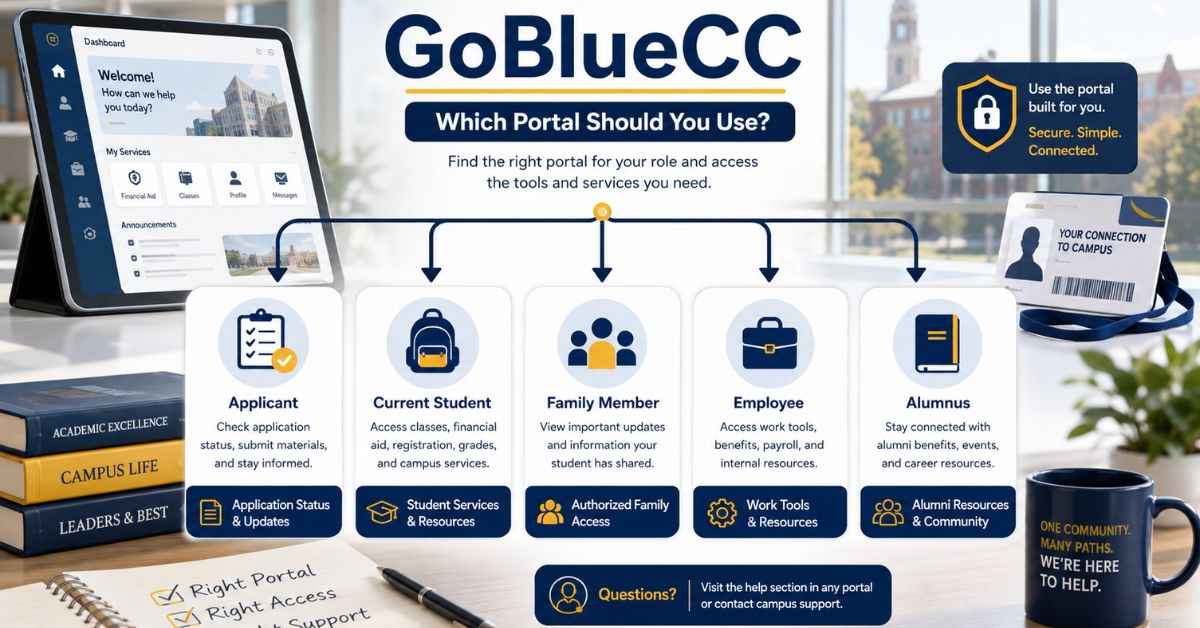
People searching for GoBlueCC login may actually need one of several U-M services. The correct destination depends on whether the person is an applicant, current student, family member, employee, or alumnus.
Current students
Wolverine Access is the main gateway for many university tools and protected student records. Current students can use it to reach Student Business and related services for account information, financial aid, and other personal university records.
Because services and menu labels can change, begin from the official Wolverine Access page rather than a deep link found through an advertisement or third-party site.
Applicants
First-year applicants normally use Enrollment Connect to review their application checklist, messages, status, and decision information. The Office of Undergraduate Admissions states that login details are sent after a successful application submission.
Enrollment Connect and Wolverine Access serve different stages and tasks.
Parents, family members, and other guests
Some university information can be shared through a Friend Account when the student authorizes access. A Friend Account is separate from a student’s uniqname and password.
Students should never share their personal login. Delegated access protects private information and reduces account problems.
Alumni and former students
Alumni may retain selected services, but their access differs from current-student access. Start at Wolverine Access and use official support when permissions are unclear.
How to Access the Correct Portal Safely
Use this process when a GoBlueCC portal search does not lead to a clearly verified service.
- Define the task: Decide whether you need an application update, financial aid record, student account, transcript, employee service, or another campus tool.
- Start on an official U-M page: Use Wolverine Access for many current-student and university services, or Enrollment Connect for undergraduate application status.
- Choose the correct user type: Sign in with a U-M uniqname when eligible, or use an authorized Friend Account where that option is supported.
- Verify the authentication screen: Since February 25, 2026, U-M protected web resources use Okta for sign-in and multi-factor authentication. The official sign-in address should begin with okta.umich.edu.
- Stop when anything looks wrong: Do not continue if the page requests unexpected information, repeats the login without explanation, or uses a suspicious address. Contact U-M support through an official page.
What changed in 2026?
On February 25, 2026, U-M replaced its older Weblogin and Duo experience with Okta sign-in and Okta Verify for multi-factor authentication. Readers may still find old tutorials, screenshots, or forum posts that mention Duo.
Older instructions can cause confusion. Confirm the domain and compare the page with current U-M guidance.
Quick troubleshooting guide
| Problem | Likely cause | Safer next action |
| Password is rejected | Typing error, outdated password, or wrong account type | Use official account-recovery guidance instead of trying multiple unrelated sites |
| Multi-factor prompt does not arrive | Device, app, network, or enrollment issue | Open official Okta support or contact the ITS Service Center |
| Applicant cannot see a checklist | Wrong portal or processing delay | Check Enrollment Connect and the admissions processing guidance |
| Parent cannot view information | Friend Account is missing, old, or not authorized | Ask the student to use the approved authorization process |
| Page looks like U-M but the address differs | Possible phishing or third-party imitation | Close the page and restart from an official U-M website |
Common Mistakes When Searching for GoBlueCC
Treating every similar name as the same service
Online results may describe a cloud platform, an affiliate login, or a company profile. Similar naming does not establish a connection to U-M student services.
Entering credentials before checking the address
Attackers can copy university branding and sign-in layouts. Check the address before entering a unique name, password, code, or personal information.
Following sponsored search results without verification
A high search position does not prove official ownership. Use a known university homepage or official bookmark, and avoid ads, shortened links, unexpected QR codes, or urgent messages.
Using old Duo instructions after the Okta change
Pre-February 25, 2026 guides may show the retired Weblogin or Duo flow. Check the update date and current Okta instructions.
Sharing a student password with family
Password sharing creates privacy and security risks. Family members should use authorized guest access when available, not the student’s account.
Pro Tips and Best Practices
Save official starting pages, not deep links
Bookmark an official U-M gateway. Deep links may expire or change.
Use a task-first search
Instead of searching only for GoBlueCC, search for the specific job you need to complete, such as “U-M application status,” “U-M financial aid notice,” or “U-M student account.” Specific wording makes official results easier to identify.
Keep a backup authentication method
Set up an approved backup authentication option before travel, phone replacement, or device loss.
Review unexpected prompts carefully
Approve a multi-factor request only when you start the sign-in. An unexpected prompt may indicate a stolen password.
Report suspicious pages
If you entered credentials on a suspicious page, change your UMICH password immediately and contact the ITS Service Center. Reporting the incident can help support staff check the account and protect other users.
FAQs
Is GoBlueCC an official University of Michigan portal?
No, GoBlueCC is not the official name used by U-M for its main student-services gateway. Official university guidance identifies Wolverine Access as the gateway to many tools and Enrollment Connect as the undergraduate application-status portal. Always confirm ownership before entering credentials.
Where should current U-M students sign in?
Current U-M students should generally begin with Wolverine Access and select the service that matches their task. Protected services now use the university’s Okta sign-in experience. Menu names and permissions may vary, so use official U-M support when a needed tile or record does not appear.
What should applicants use to check their application status?
Undergraduate applicants should use Enrollment Connect to review their checklist, messages, application details, and decision information. U-M Admissions says credentials are normally sent after a successful submission. Processing times can vary during busy periods, so an item may not appear immediately after it is sent.
Why am I seeing old Duo login instructions?
You are likely viewing content published before U-M’s February 25, 2026 authentication change. Okta replaced the previous Weblogin and Duo experience for protected web resources. Check the article date, use current ITS instructions, and avoid relying on screenshots that no longer match the live process.
How can I tell whether a U-M login page is genuine?
Check that the official U-M Okta domain appears at the beginning of the address before entering a password or approving multi-factor authentication. Do not trust branding alone. Close pages reached through suspicious emails, ads, shortened links, or QR codes and restart from an official university site.
What should I do if a GoBlueCC login page asks for my U-M password?
Do not enter your U-M password unless the process has redirected you to the verified university authentication domain. A similarly named page may be unrelated. Close it, open Wolverine Access from an official U-M source, and contact ITS if you already shared credentials or approved an unexpected prompt.
Can parents use a student’s account to view financial aid?
Parents should not use the student’s personal account. Where permitted, the student can authorize access through a Friend Account. The available information depends on the authorization and the service. This approach protects the student’s password and gives the guest an appropriate access path.
Conclusion
A search for GoBlueCC can lead to unrelated pages, so the name alone is not enough to identify a safe student portal. Start by defining your task, use an official University of Michigan gateway, and confirm the current Okta sign-in domain before entering any account information.
For U-M users, Wolverine Access, Enrollment Connect, authorized Friend Accounts, and official ITS support provide clearer routes than an uncertain search result. Treat unfamiliar login pages carefully, especially when they request passwords, verification codes, or urgent action.